CES 2025 Innovation AwardFree shipping over €992-year warranty
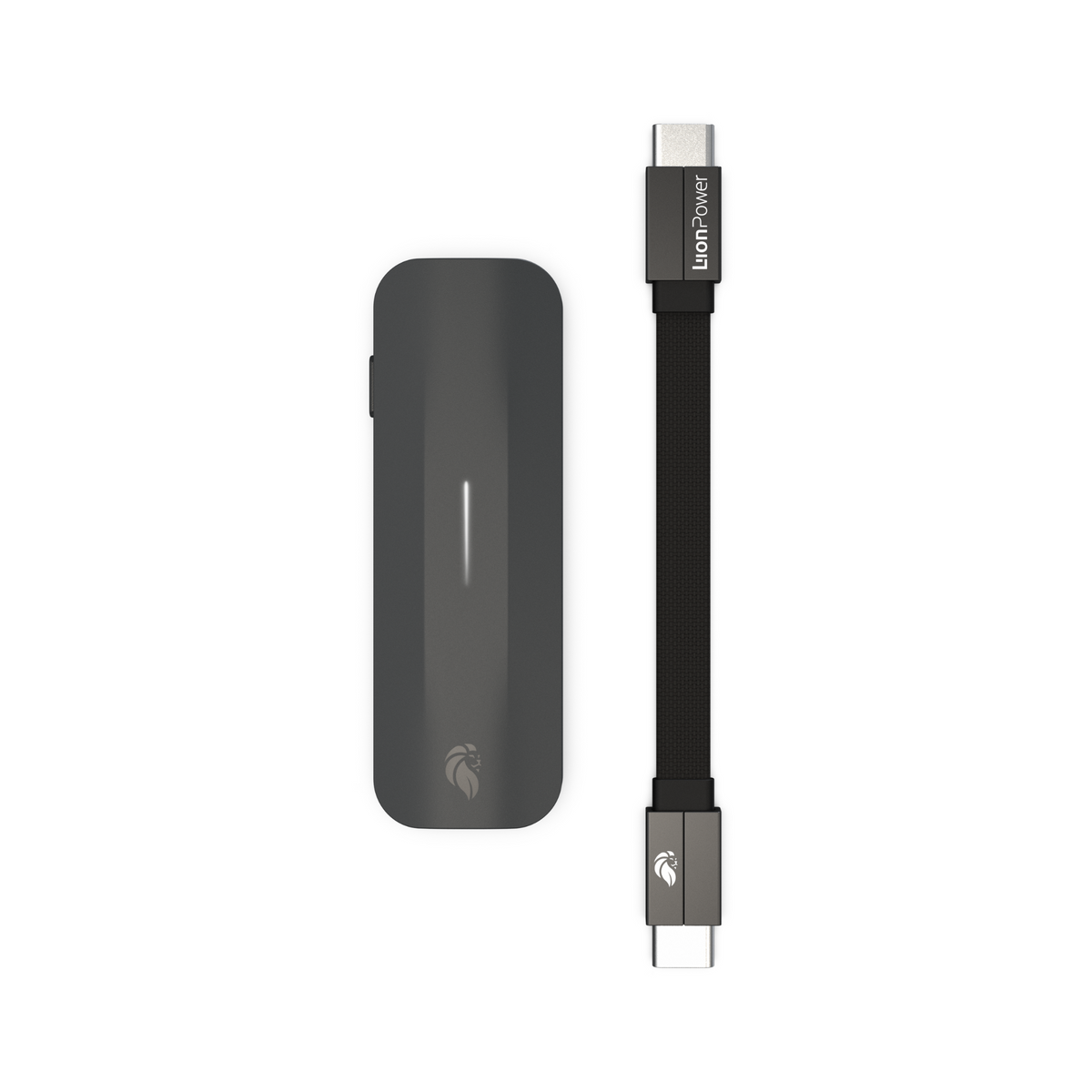
Leo, front view

Leo: The Battery Life Extender

Setup, answers, troubleshooting, the manual and full specifications.

Product page

Three steps

Leo connected with its cable to a USB-C charger in a power strip

Step 1: Connect to a charger

Connect Leo to a charger. The LED bar lights up.

Leo connected to a charger with its LED bar lit

Step 2: Select your mode

Press the button to choose your charging mode. For everyday use, choose Smart Mode (white light).

Leo between the charger cable and a phone, charging the phone

Step 3: Connect your device

Connect your device to Leo. If Leo does not start charging within 30 seconds, unplug Leo fully and repeat the three steps.

The three modes

Press the button to switch between the modes.

Presses Mode LED What it does
1× Smart Mode White Smart charging, stops before full
2× Ghost Mode Blue Charges normally to 100%
3× Safe Mode Green Blocks data transfer while charging

Leo Connect app

Download the Leo Connect app

See your battery analytics, change settings and keep Leo up to date. Get it at liionpower.tech/app.

Leo: frequently asked

Can I use Leo with different devices?

Yes. Leo charges practically anything that charges through a USB port, up to 100W: smartphones, headphones, speakers and game controllers.

Do I need the app?

No. Leo is plug and play and works on its own. The app is for changing settings and seeing your battery analytics and health.

We do recommend the app to keep Leo updated. Get it at liionpower.tech/app.

Can I turn the light off?

Yes. You can turn the light off with the LED timeout setting in the Leo Connect app.

What's in the box?

Leo and a USB-C to USB-C cable.

Is it safe on public USB ports?

Yes. In Safe Mode, Leo works as a data blocker: it charges your device and blocks any data transfer.

How long is the warranty?

Leo comes with a two-year warranty.

Start here

Update Leo

Most issues are solved by updating both the app and Leo.

  • Download the latest Leo Connect app at liionpower.tech/app.
  • Connect Leo to a charger.
  • Open the app and connect to Leo with Bluetooth.
  • Update Leo in the app.

During the update, don't charge a device with Leo, keep your phone close and don't unplug Leo. When it's done, unplug Leo fully and plug it back in.

Then follow the three steps in the manual

Most issues (99%) are solved this way. Unplug Leo fully, then:

  • Connect Leo to a charger.
  • Set the charging mode with the button.
  • Connect your device.

If Leo doesn't start charging within 30 seconds, unplug it fully and repeat.

Common issues

Red light

Most of the time, unplugging Leo fully and following the three steps fixes it.

If the red light stays, Leo needs a firmware update and won't work until it's done. Connect Leo to a charger, open the app, connect with Bluetooth and update Leo, even if the app says it is up to date. Then unplug Leo fully and plug it back in. If the light is still red, try the update again.

My phone charged to 100% in Smart Mode. Is Leo working?

In Smart Mode, Leo stops charging before your device is full. Two things can make it look like 100%:

  • Your charger: Smart Mode needs a charger with at least 5V/2A. Older chargers with 1A or 0.8A can stop Leo from reading the charge correctly. Also check that your cable works.
  • Your phone: some phones show 100% when the battery is closer to 90%. The charge graph in the Leo app shows where Leo actually stopped.

You can also set your own charge limit in the app, in the Phone tab.

My device stops charging too early

Turn on Higher Charge Limit in the app: Settings > Advanced Settings > Higher Charge Limit. It raises the limit in Smart Mode, which helps when the default feels too low or the battery is older.

Leo keeps restarting or stops charging after a while
  • Update Leo to the latest software.
  • Follow the three steps in the manual.
  • If it still happens, turn on Higher Charge Limit in Settings > Advanced Settings.

A faulty cable can also cause this, so try a different cable.

Ghost Mode isn't charging as fast as expected

For charging up to 100W in Ghost Mode, turn on Settings > Advanced Settings > 100W Ghost Mode (Beta).

Your charger, cable and device all need to support that speed. Leo can't charge faster than your setup allows.

How do I set a custom charge limit?

In the Leo Connect app (iOS and Android), open the Phone tab and set your limit. It works while you're connected to Leo with a smart device. If you don't see it, update the app.

I hear a soft ticking sound

This can come from the Bluetooth antenna staying on. Turn on Silent Mode in the app: Settings > Advanced Settings > Silent Mode.

Bluetooth then turns off a few minutes after Leo starts. To reconnect, hold the button on Leo for at least 1 second; Bluetooth stays on for 3 minutes.

Still not working?

Contact support

Leo: user manual

Specifications

Name
Leo: The Battery Life Extender
Power
20V / 5A (100W) max
Dimensions
72 × 24 × 9 mm
Connectors
USB-C
Compatibility
all USB-C to USB-C, Lightning and Micro-USB cables
Charging direction
both directions
Material
polycarbonate
Firmware
over-the-air updates through the app
Connectivity
Bluetooth
Button
Smart / Ghost / Safe Mode
LEDs
light strip showing charging mode and status
App
Android and iOS
Color
Black

In the box

  • Leo smart charge controller
  • USB-C to USB-C cable

Certifications & warranty

CE · RoHS · FCC
2-year warranty